SSD vs HDD: The Difference Between the Two Drive Types
How solid-state drives and hard disks differ in speed, noise, lifespan and cost per terabyte, which suits a laptop or office PC, and how to spot a dying drive.
 4 min read
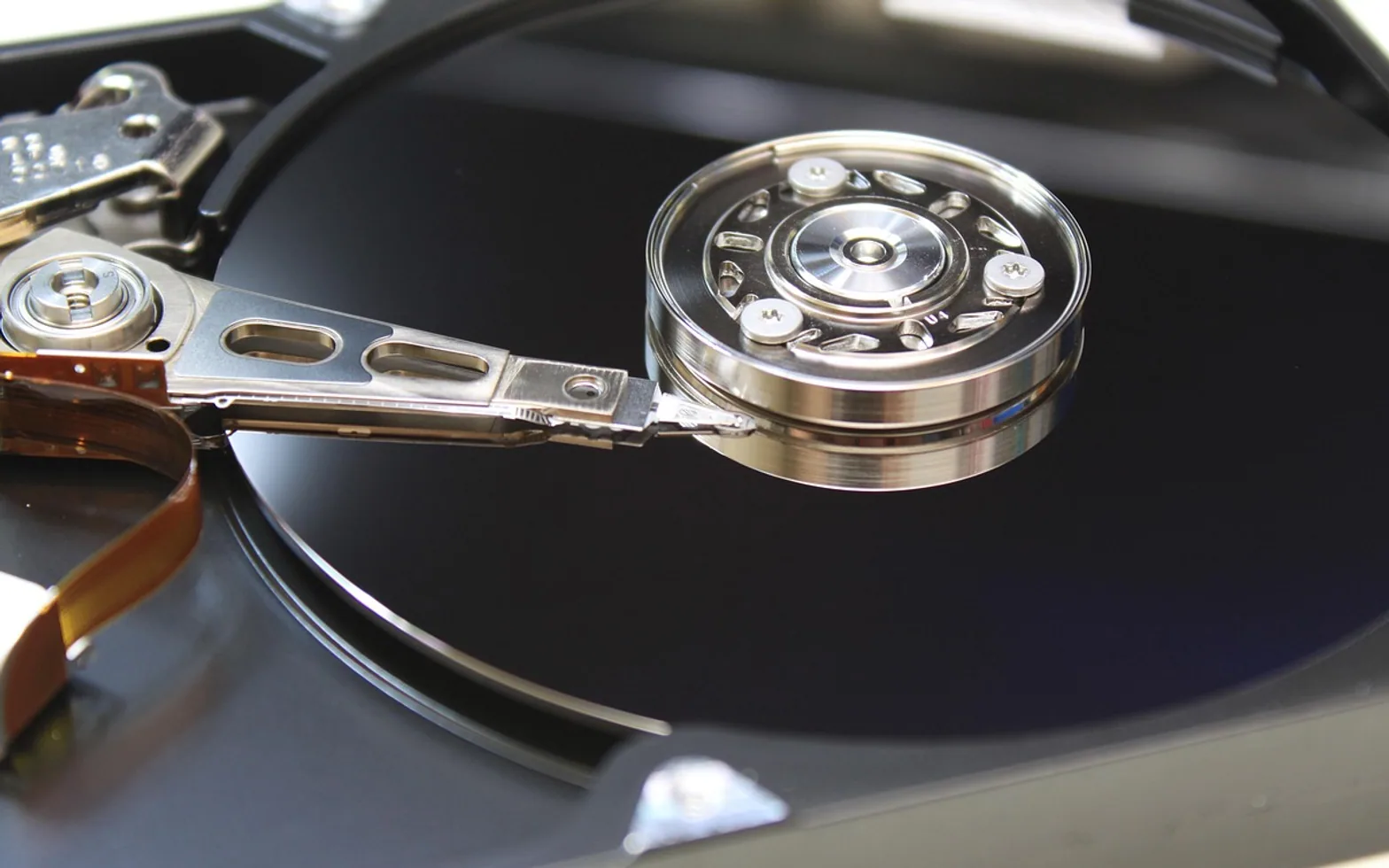
 A hard disk drive (HDD) records data magnetically on spinning metal platters, read by a tiny head on a moving arm. A solid-state drive (SSD) stores it on flash memory chips with no moving parts. That is the whole difference in one sentence, and it explains nearly everything else: SSDs start programs and boot systems much faster, run silently and shrug off bumps, while hard disks still give more capacity for the money.
Side by side
| SSD | HDD | |
|---|---|---|
| How it stores data | Flash memory chips | Magnetic platters and a moving head |
| Everyday feel | Near-instant start-up and file opening | Noticeable waits, especially at boot |
| Noise and heat | Silent, little heat | Audible spin and seek sounds |
| Knocks and drops | Tolerant | Vulnerable while running |
| Cost per terabyte | Higher | Lower, especially at large sizes |
| Best job | System drive, laptops, daily work | Archives, media libraries, backup targets |
What is an SSD, exactly?
Inside an SSD is a controller chip and several flash memory chips. The controller spreads writes across the chips so no single area wears out early, and it keeps a map of where every piece of data lives. Because there is nothing to spin up or move into position, reading a scattered set of small files (which is most of what an operating system does) is dramatically quicker than on a disk.
The shapes they come in
- 2.5-inch SATA: the same size as a laptop hard disk, so it drops into older machines as a direct swap.
- M.2 SATA: a small stick that plugs into the motherboard but still uses the older SATA connection speed.
- M.2 NVMe: the same stick shape, connected over PCI Express, and much faster than SATA. Most new laptops and desktops ship with this kind.
An M.2 SATA and an M.2 NVMe drive can look identical but are not always interchangeable, so check which kind your slot accepts before buying. The quickest way to find out what is already fitted is described in the guide to checking computer specs.
Which one for a laptop or office PC?
For the drive that holds the operating system and programs, an SSD is the clear choice. It is the single upgrade that makes an older computer feel newer, often more than a processor change would. In a laptop it also saves battery and survives being carried around.
Hard disks still make sense where size matters more than speed:
- a second drive in a desktop for photos, video or scanned archives;
- an external drive that receives nightly backups;
- network storage boxes that hold years of shared files.
A sensible office setup pairs the two: a fast SSD for work in progress and a larger disk, or a cloud service, for copies and archives. The trade-offs of keeping files online are covered in cloud-based computer systems.
If an older machine is slow, check its memory too. A drive swap and a sensible amount of RAM together cover most of the gap between a tired PC and a new one.
How long do SSDs and hard disks last?
Both wear out, in different ways. Flash cells tolerate a limited number of writes, so SSD makers publish an endurance figure, usually in terabytes written (TBW), alongside the warranty. Ordinary office work writes far less than those ratings in a typical service life. Hard disks wear mechanically: bearings, motors and heads age, and a drop while running can damage the platters at once.
The practical lesson is the same for both: no drive is permanent, so keep a current backup on a separate device or service and treat the drive in the computer as replaceable.
Signs of hard drive failure
- Clicking, grinding or repeated spin-up sounds.
- Files that suddenly will not open, or folders that take ages to list.
- Freezes when saving, and error messages about the disk during start-up.
Signs an SSD is struggling
- The drive switches itself to read-only, so nothing new can be saved.
- Files become corrupted, or the computer occasionally fails to find the drive at boot.
- Health readings drop quickly over a few weeks.
How to check drive health
Drives keep internal health records, known as SMART data. On Windows 11, open Settings > System > Storage > Advanced storage settings > Disks & volumes, choose the drive and select Properties; NVMe SSDs show an estimated remaining life and temperature there. The drive maker's own utility gives more detail for both SSDs and disks. On a Mac, Disk Utility can run First Aid on a volume and reports problems it finds.
When any of the warning signs above appear, copy important files off first and investigate second. A failing drive can get worse with every hour of use.
Common mix-ups
Should an SSD be defragmented?
No. Defragmenting helps hard disks by putting file pieces next to each other. On an SSD it only adds wear. Windows recognizes SSDs and runs a different routine (TRIM) through its Optimize Drives tool automatically.
Is a bigger SSD faster?
Within the same model range, larger capacities are often a little quicker because they have more chips working in parallel. The difference matters far less than the jump from a hard disk to any SSD.
Can I move my system to a new SSD without reinstalling?
Yes, with cloning software that copies the old drive across. Afterwards you may need to set the new drive first in the boot order, which is explained in what BIOS and UEFI do.
What is new in each topic




DrawerComputerTechnology