NVMe vs SSD: Why the Two Labels Are Not Opposites
NVMe is a kind of SSD, not a rival to it. How NVMe and SATA drives differ, how to tell which one a computer takes, and when the faster type is worth having.
 3 min read
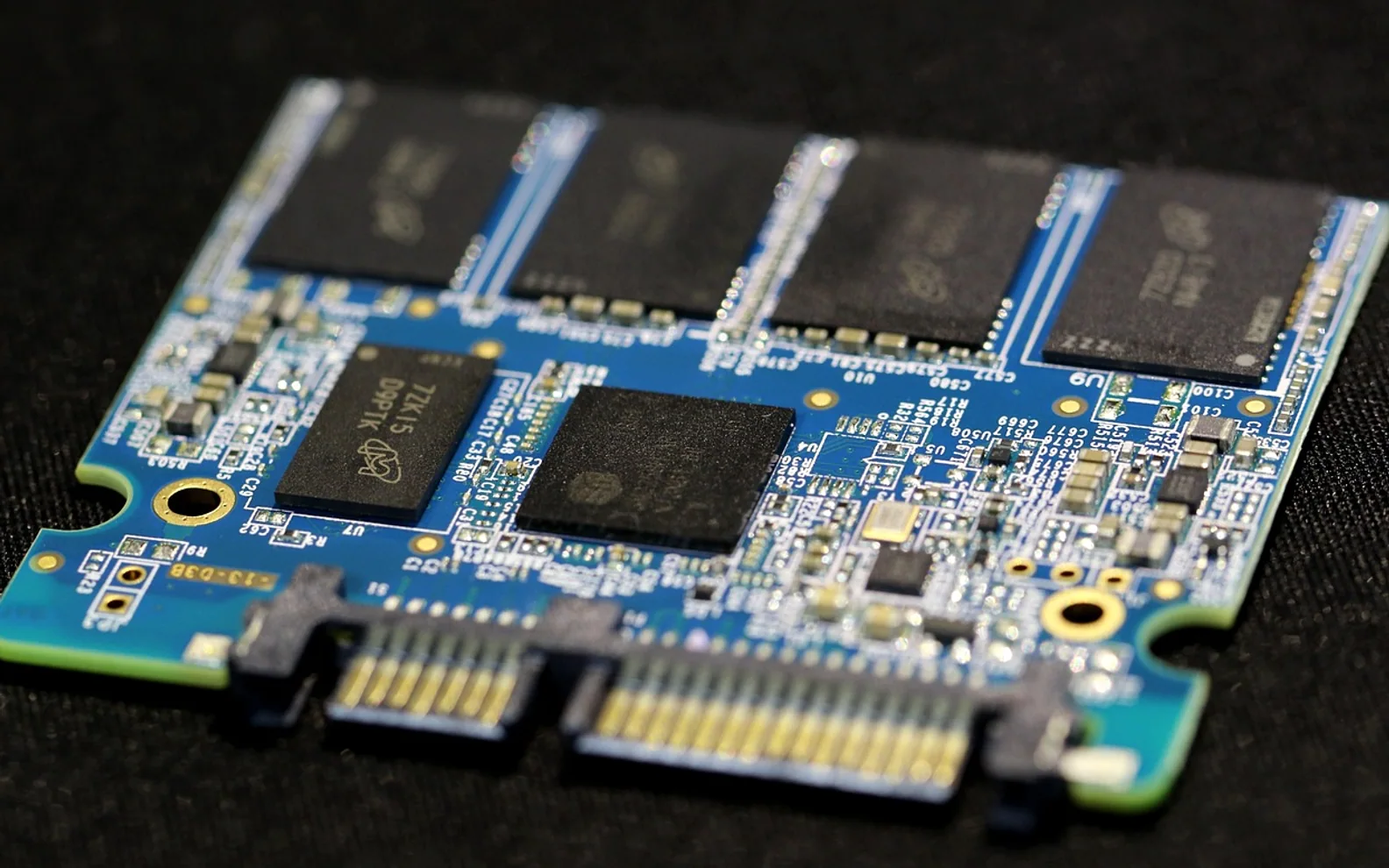
"NVMe vs SSD" is a slightly misleading comparison. An NVMe drive is an SSD. Every solid-state drive stores data on flash memory chips; what differs is how it talks to the rest of the computer. NVMe drives use a fast, modern connection called PCI Express, while older-style SSDs use SATA, the same connection designed years ago for spinning hard disks. So the useful question is not NVMe or SSD, but NVMe SSD or SATA SSD.
The two kinds compared
| SATA SSD | NVMe SSD | |
|---|---|---|
| Connection | SATA, shared with hard disks | PCI Express lanes, direct to the processor or chipset |
| Common shapes | 2.5-inch box, or M.2 stick | M.2 stick (most common), add-in card |
| Speed ceiling | Limited by the SATA interface | Several times higher, rising with each PCIe generation |
| Fits older computers? | Almost always | Only with a suitable M.2 slot or adapter |
| Heat | Modest | Fast models can run warm and may use a heatsink |
Both are a big step up from a hard disk. The guide to SSD and HDD drives covers that bigger jump, which matters far more to everyday speed than the step between the two SSD types.
Will you notice the difference?
For booting, opening programs and office work, a SATA SSD and an NVMe SSD feel very similar, because those jobs read many small files and both drive types handle that well. The gap shows when large files move: copying long video clips, unpacking big archives, working with large photo libraries or loading big game levels. If that describes a real part of your day, NVMe is worth having. If not, a SATA SSD is a perfectly good upgrade for an older machine that cannot take NVMe.
How to tell which one your computer takes
- Find the exact model of the computer or motherboard; the guide to checking computer specs shows where.
- Look up the specification sheet or manual and find the storage section. It will list M.2 slots and say whether each supports PCIe (NVMe), SATA, or both.
- Note the slot length, usually written as a four-digit number such as 2280 (22 mm wide, 80 mm long), so the new drive fits the mounting point.
- Check the notch on the drive's connector against the slot. M.2 sticks use different notch positions, and the wrong one will not seat.
An M.2 slot that accepts only SATA will not run an NVMe drive, even though the stick fits physically. That mix-up is the most common reason a new drive does not appear.
After fitting an NVMe drive
- If the drive does not show up, open the firmware setup and confirm the M.2 slot is enabled and the drive is detected; what BIOS and UEFI do explains how to get there.
- To start the computer from the new drive, set it first in the boot order after cloning or installing the system.
- Fit the heatsink if the motherboard provides one. Fast NVMe drives slow themselves down when they get too hot, and drive temperature appears in the same monitoring tools used to check CPU temperature.
Short answers
Is M.2 the same as NVMe?
No. M.2 is the shape of the stick and slot. An M.2 drive can be either NVMe or SATA.
Can a laptop take an NVMe drive?
Many recent laptops ship with one. Older models may have a SATA-only M.2 slot or only a 2.5-inch bay, so check the manual before buying.
What is new in each topic


DrawerComputerTechnology