How Much RAM Do I Need? Sizing Memory for Work and Home
A plain way to decide how much memory a laptop or desktop needs for office work, photos, video or gaming, and how to tell whether yours is running short.
 3 min read
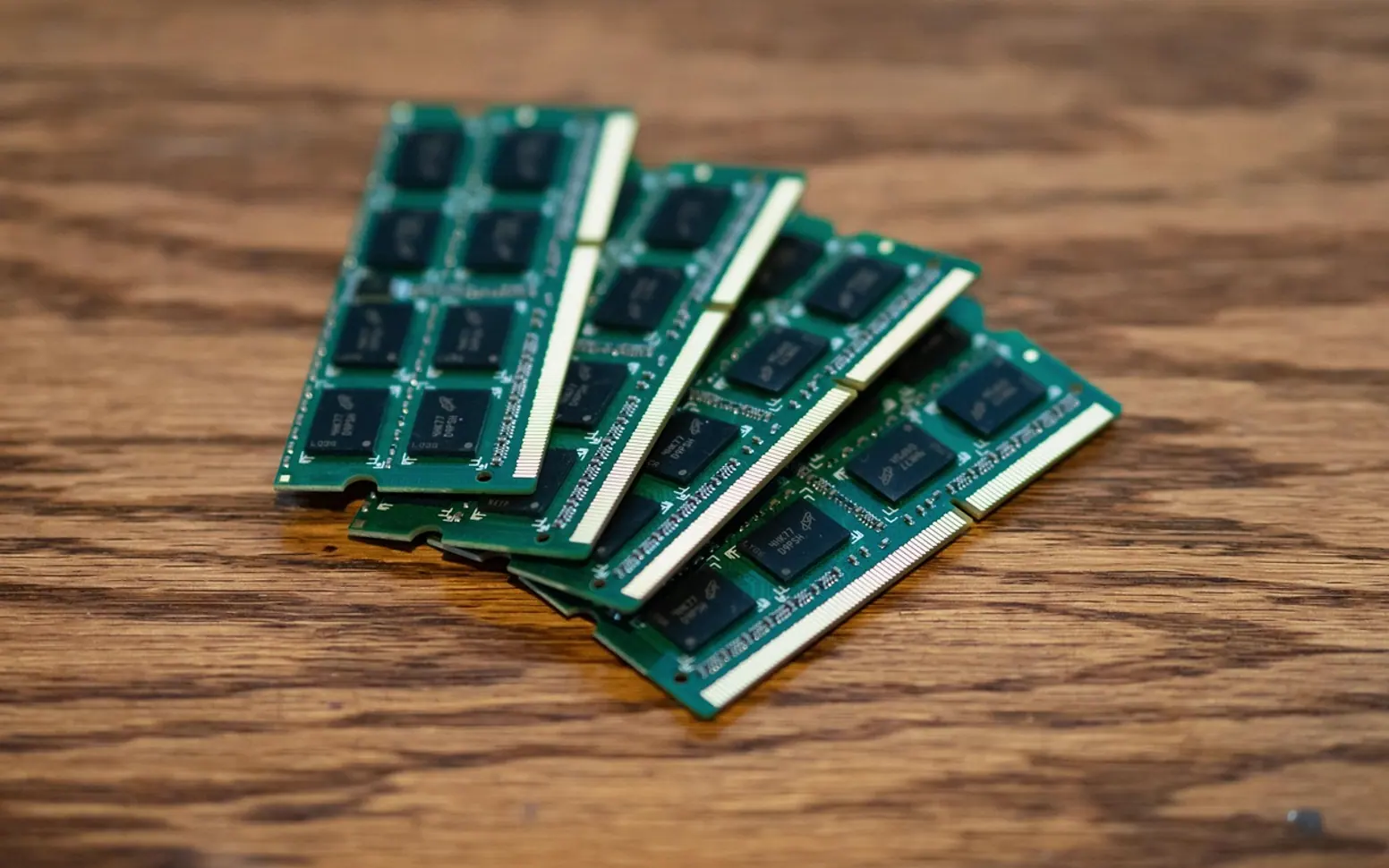
 Random access memory, usually called RAM, is the short-term workspace a computer uses for whatever is open right now: the browser, the spreadsheet, the video call and the dozen background helpers you never think about. When that workspace fills up, the machine starts shuffling data back and forth to its storage drive, and everything slows to a crawl. Buy too little and the computer feels old on day one; buy far too much and you have paid for capacity that sits idle.
What RAM does, in one picture
Think of storage as a filing cabinet and RAM as the desk. Everything you are working on has to be spread out on the desk. A bigger desk does not make you write faster, but it means you can keep more papers open without constantly putting some away and fetching others. That is why extra memory helps most when you multitask and barely matters when you do one light job at a time.
A sensible starting point by type of use
Software keeps getting hungrier, so treat the following as broad rules of thumb rather than fixed limits. Always check the requirements of the specific programs you depend on.
| How the computer is used | Comfortable memory |
|---|---|
| Email, web browsing, documents, a few tabs | 8 GB is workable; 16 GB gives breathing room |
| Office work with many tabs, video calls and spreadsheets open together | 16 GB |
| Photo editing, larger spreadsheets, light video work | 16 to 32 GB |
| Serious video editing, 3D work, virtual machines | 32 GB or more |
| Gaming | Follow the recommended (not minimum) figure for the games you play |
For most small offices and family computers, 16 GB has become the sweet spot: it handles a busy working day without forcing anyone to close windows, and it leaves room for the next few years of updates.
How to tell if you are running short
You do not need to guess. On Windows, open Task Manager with Ctrl + Shift + Esc and look at the Memory graph on the Performance tab while you work normally. If it sits near the top for long stretches, memory is the bottleneck. On a Mac, open Activity Monitor from the Utilities folder and check the Memory tab; a memory pressure graph that turns yellow or red tells the same story.
Other signs include long pauses when switching between programs, browser tabs that reload every time you click back to them, and a drive light or fan that works hard even when you are doing something simple. If you are unsure what is installed in the first place, our guide on checking computer specs on Windows and Mac shows where to find it.
Can you add more later?
That depends entirely on the machine:
- Most desktops have spare or replaceable memory slots, so upgrading is usually straightforward.
- Many thin laptops have memory soldered to the board, which means the amount you buy is permanent.
- Apple silicon Macs combine memory with the chip, so it cannot be changed after purchase.
- Some business laptops still offer one or two slots; the maker's manual or support page will say.
When a computer cannot be upgraded, it is worth stretching the budget for more memory at the time of purchase. It is usually a better investment than a slightly faster processor you will rarely push to its limit.
Buying tips if you do upgrade
- Find the exact memory type and speed your machine supports in the manual or the maker's support pages.
- Match new modules to the existing ones, or replace them as a pair, to keep dual-channel performance.
- Switch the computer off, unplug it and discharge static by touching a metal surface before opening the case.
- After fitting, confirm the new total shows up in the system settings.
If opening a case feels like a step too far, a local repair shop can fit memory quickly, and it is one of the cheaper jobs they do.
Memory is not the only lever
Before spending anything, try the free fixes. Close programs that start automatically but are rarely used, trim browser extensions, and restart the machine once in a while so leaked memory is released. And if the computer still uses a spinning hard disk, moving to a solid-state drive often makes a bigger difference than more RAM. Match memory to the job, check how much you really use, and you will avoid both the sluggish bargain and the overpowered splurge.
What is new in each topic




DrawerComputerTechnology