How to Check Computer Specs on Windows and Mac
Find your processor, memory, storage and graphics details on Windows or a Mac in a minute, plus what each line means before you upgrade or ask for help.
 4 min read
 Sooner or later every office and household meets the question: what is actually inside this computer? A new accounting package lists minimum requirements, a game needs a certain graphics card, or a support technician on the phone asks which processor you have. Most people guess, read the sticker on the case or dig out an old receipt. There is a faster way, and it takes less than a minute on both Windows and macOS.
The five details worth knowing
A full system report runs to dozens of lines, but only a handful matter for everyday decisions:
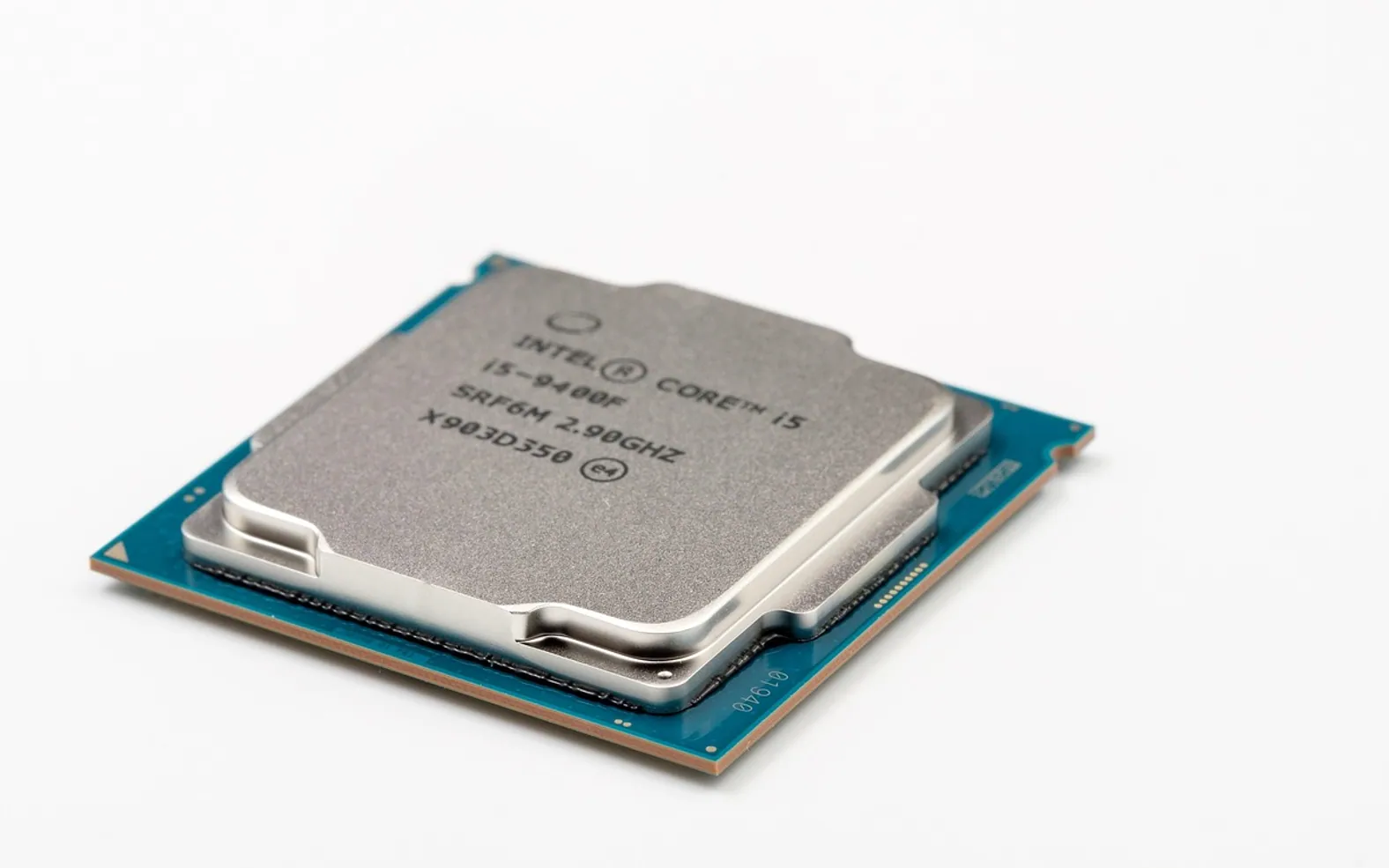
- Processor (CPU): the model name, such as an Intel Core, AMD Ryzen or Apple M-series chip, plus its generation.
- Memory (RAM): how much working memory is installed, shown in gigabytes.
- Storage: the size of the drive and whether it is a solid-state drive (SSD) or an older spinning hard disk.
- Graphics: whether the machine relies on graphics built into the processor or has a separate card.
- Operating system version: the exact edition and build, which decides what software and updates will run.
Write these five down once for each machine you own and keep the list with your other office records. It saves time whenever something needs replacing.
Checking specs on Windows
The quick route: Settings
Open Settings, choose System and scroll to About. You will see the device name, processor, installed RAM and system type (64-bit or not), followed by the Windows edition and version. A Copy button lets you paste everything into an email, which support staff appreciate.
Storage and graphics
For the drive, open Settings > System > Storage and then Advanced storage settings > Disks & volumes. The media type tells you whether it is an SSD. For graphics, press Ctrl + Shift + Esc to open Task Manager, switch to the Performance tab and click through CPU, Memory, Disk and GPU. Task Manager also shows how much of each resource is in use right now, which is useful when a machine feels slow.
The detailed route: System Information
Press Windows key + R, type msinfo32 and press Enter. The System Information window lists the motherboard maker, BIOS version, memory details and much more. You rarely need all of it, but it is the place to look when a technician asks a very specific question.
Checking specs on a Mac
Click the Apple menu in the top-left corner and choose About This Mac. The window shows the chip, memory, serial number and macOS version. For more depth, click More Info and then System Report; the sidebar breaks things down into Hardware, Network and Software sections. Storage lives under General > Storage in System Settings, with a coloured bar showing what is taking up space.
On Apple silicon Macs, memory is part of the chip package and cannot be upgraded afterwards. That makes the number on the About screen especially important when you buy: it is the amount you will live with.
Reading the results without a dictionary
| You see | What it tells you |
|---|---|
| Processor model and generation | Roughly how old the machine is and which software it can support |
| Installed RAM | How many programs and browser tabs it can juggle comfortably |
| SSD or HDD | Whether start-up and file opening will feel quick or sluggish |
| Integrated or dedicated graphics | Whether video editing, 3D work or gaming is realistic |
| Windows edition (Home or Pro) | Which business features, such as hosting remote connections, are available |
If memory looks like the weak point, our guide to how much RAM you really need explains what is comfortable for different kinds of work.
When the numbers point to a bigger decision
Checking specs often settles a debate in the office. A slow laptop with an older spinning disk may be transformed by a solid-state drive, while one with very little memory and a processor many generations old may not be worth upgrading at all. If you manage several machines, a simple spreadsheet with the five details for each one makes replacement planning much calmer, and it gives an outside helper a head start. When the list grows beyond what one person can look after, it may be time to consider the kind of arrangement described in our piece on hiring a computer support company.
A short routine to keep
- Note the five details for every computer when it arrives.
- Update the list after any upgrade or repair.
- Check requirements against the list before buying software.
- Share the list, not passwords, when you ask someone for help.
It is a small habit, but it turns a vague "it's an old laptop" into a clear answer, and clear answers make every fix quicker.
What is new in each topic




DrawerComputerTips & Advice