What Is BIOS? UEFI, Setup Screens and How to Get In
BIOS and UEFI explained: what the firmware does before Windows loads, how the two differ, how to open the setup screen and which settings are safe to touch.
 5 min read
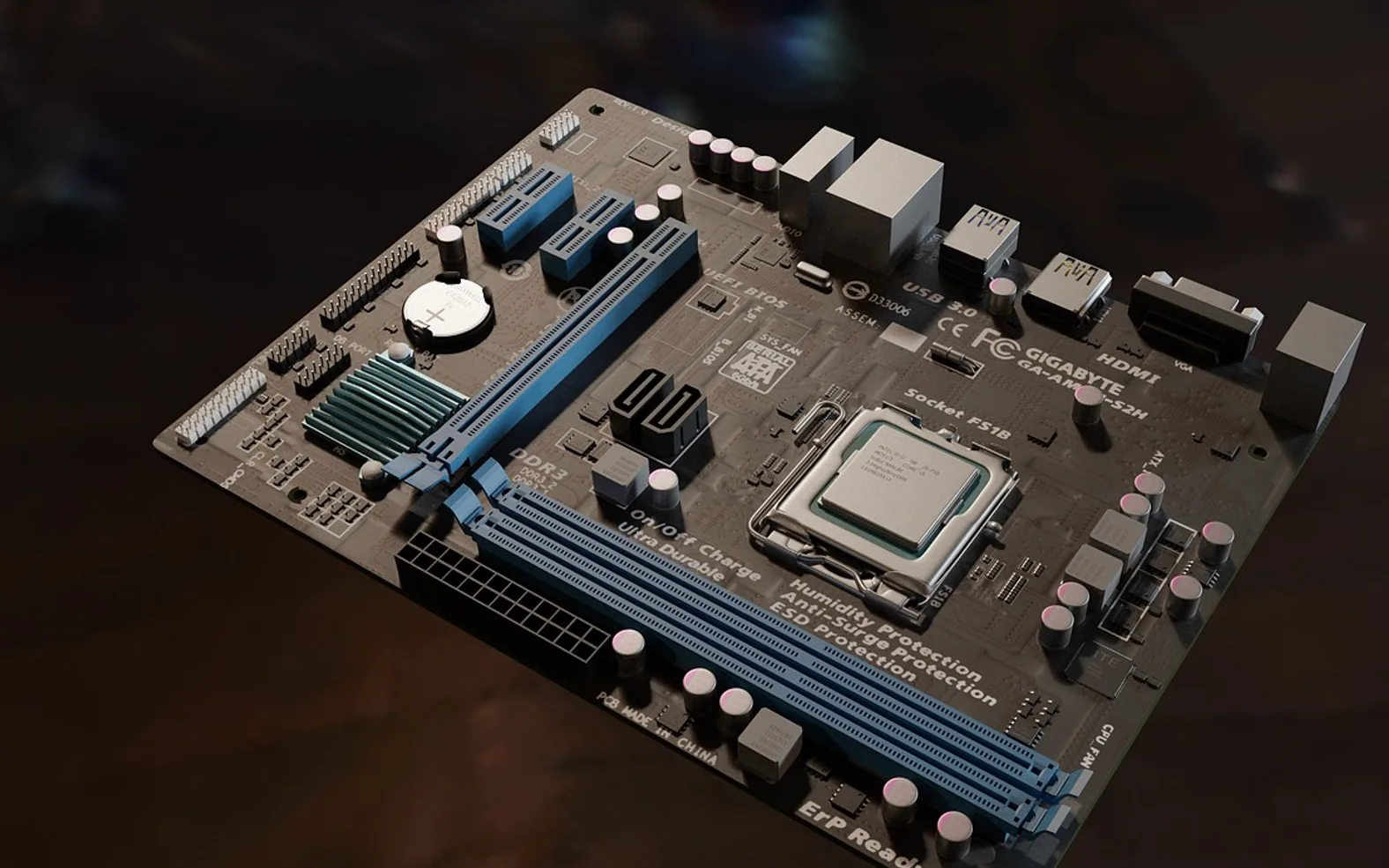
 The BIOS is the firmware stored on a chip on a computer's motherboard. It runs the moment you press the power button, checks that the essential hardware is present, and then hands control to the operating system on the boot drive. On almost every PC sold in the last decade the job is actually done by UEFI, a newer standard, yet manuals, menus and support staff still call it "the BIOS".
You rarely need to visit it. When you do, it is usually to change the boot order, switch on a feature such as virtualization or Secure Boot, or read a temperature. Knowing what you are looking at keeps those visits short and safe.
What the firmware does during start-up
- Power-on self-test (POST). The firmware confirms that the processor, memory and graphics respond. A missing or loose memory stick often shows up here as a series of beeps or a blinking light rather than a picture.
- Hardware setup. It initializes storage controllers, USB ports and the keyboard so they work before any driver is loaded.
- Finding a boot device. It walks through the boot order (internal drive, USB stick, network) and looks for something it can start.
- Handover. It passes control to the boot loader, which starts Windows, Linux or another system.
Settings such as the boot order and the system clock are kept by the firmware even when the computer is unplugged. On many desktops a small coin cell on the motherboard, often called the CMOS battery, keeps that memory and the clock alive. When the date resets itself every time the PC loses power, that little battery is usually worn out and cheap to swap.
BIOS vs UEFI at a glance
| Legacy BIOS | UEFI | |
|---|---|---|
| Age | Dates back to the first IBM-compatible PCs | The modern replacement on current PCs |
| Setup screen | Text menus, keyboard only | Often graphical, mouse supported |
| Disk layout | MBR partitions, with a ceiling of about 2 TB for a boot disk | GPT partitions, built for far larger drives |
| Secure Boot | Not available | Available; blocks unsigned start-up code |
| Windows 11 | Not supported for a standard install | Required |
Many UEFI systems offer a "CSM" or "Legacy" option that imitates the old BIOS so older operating systems can start. Unless you have a specific reason, leave it switched off: it disables Secure Boot and can stop a GPT-formatted Windows drive from booting.
How to see which one your PC uses
On Windows, press Windows + R, type msinfo32 and press Enter. In the System Summary list, the line BIOS Mode reads either UEFI or Legacy. The same window shows the firmware version and date, which is handy before you look for an update. The broader tour of that window is in the guide to checking computer specs on Windows and Mac.
How to enter the BIOS or UEFI setup
There are two routes, and the second is more reliable on fast-starting machines.
Route 1: the start-up key
Restart and tap the setup key as soon as the screen lights up. Common keys are Delete and F2; some brands use F1, F10 or Esc. A separate key, frequently F12, opens a one-time boot menu so you can start from a USB stick without changing any saved setting. The correct key is listed in the manual and often flashes briefly on the maker's logo screen.
Route 2: from inside Windows
- Open Settings, go to System and then Recovery (on Windows 10: Update & Security > Recovery).
- Next to Advanced startup, choose Restart now.
- On the blue menu pick Troubleshoot > Advanced options > UEFI Firmware Settings, then Restart.
If the UEFI option is missing from that menu, the machine is running in Legacy mode and only the key method works.
Macs are different. Apple silicon models have no BIOS-style setup screen at all; holding the power button at start-up opens the startup options instead.
Settings people actually change
- Boot order to start from a USB installer or a newly fitted drive, for example after moving to a faster disk as described in the SSD vs HDD guide.
- Virtualization (Intel VT-x or AMD-V, sometimes called SVM) for virtual machines and some developer tools.
- Secure Boot and TPM, both needed for Windows 11.
- Fan curves and hardware monitor, where CPU temperature and fan speeds are shown without installing anything.
- Power-on behaviour, such as starting automatically when power returns, useful for an office machine that must come back after an outage.
Leave voltage, memory timing and overclocking pages alone unless you know exactly why you are there. If a change goes wrong, look for Load Optimized Defaults or Load Setup Defaults on the exit page; it restores a known starting point.
Should you update the BIOS?
Firmware updates fix bugs, close security holes and add support for newer processors or memory. They also carry more risk than an ordinary software update, because an interrupted flash can leave a board unable to start. A cautious rule for an office:
- Update when the release notes mention a problem you have, a security fix, or hardware you plan to install.
- Download only from the computer or motherboard maker's support page for your exact model.
- Keep a laptop on its charger and a desktop on reliable power for the whole process, and do not switch off while it runs.
For a fleet of machines, or a board that already refuses to start, a computer support company can handle updates in bulk and has recovery tools for a failed flash.
Quick questions
Is the BIOS the same as the operating system?
No. The firmware lives on the motherboard and runs first; the operating system lives on the drive and runs after it. Wiping or replacing the drive leaves the firmware untouched.
Can entering the setup screen break anything?
Looking is harmless. Changes only take effect when you choose to save and exit, so pressing Esc and leaving without saving discards anything you clicked by mistake.
Why does my PC skip straight past the logo?
Fast start-up features shorten the window for the setup key. Use the Windows route above, or turn off fast boot inside the firmware if you need the key regularly.
What is new in each topic



DrawerComputerTechnology