How to Use Your Phone as a Hotspot Without Surprises
Share a phone's mobile data with a laptop on iPhone or Android, choose between Wi-Fi, USB and Bluetooth, and avoid data, battery and security trouble.
 3 min read
 A mobile hotspot turns your phone into a small wireless router. The phone connects to the mobile network as usual and shares that connection with a laptop, tablet or second phone nearby. It is a lifesaver when the office internet goes down before a deadline, when the café Wi-Fi is unreliable or when you need to send a quote from a client's car park. Setting it up takes less than a minute, but a little preparation avoids the usual surprises on the next phone bill.
Check your plan first
Not every mobile plan treats hotspot use the same way as browsing on the phone itself. Some include a separate allowance for sharing, some slow down shared data after a limit, and a few do not allow it at all. Look in your carrier's app or account page for words such as "hotspot", "tethering" or "data sharing" before you rely on it for real work. On a business plan, it is worth asking your provider directly.
Turning it on
iPhone
- Open Settings and tap Personal Hotspot. If you do not see it, look under Cellular or Mobile Data.
- Switch on Allow Others to Join.
- Note the network name (it matches the phone's name) and the Wi-Fi password shown on the same screen. Change the password to something long and unique.
- On the laptop, pick the phone from the list of Wi-Fi networks and enter the password.
Devices signed in to the same Apple account can often join without typing the password at all.
Android
- Open Settings and go to Network & internet (on Samsung phones, Connections).
- Tap Hotspot & tethering (Samsung: Mobile Hotspot and Tethering) and open Wi-Fi hotspot.
- Set a recognisable network name, choose WPA2 or WPA3 security and a strong password.
- Switch the hotspot on and connect the laptop as you would to any wireless network.
You can also add a hotspot tile to the quick settings panel so it is one swipe away next time.
Wi-Fi, USB or Bluetooth?
| Method | Strengths | Drawbacks |
|---|---|---|
| Wi-Fi hotspot | Easy, works with several devices at once | Uses the most battery |
| USB tethering | Stable, and the laptop charges the phone at the same time | Needs a cable and one device only |
| Bluetooth tethering | Gentle on the battery | Noticeably slower; fine for email, poor for video calls |
For a long video meeting, USB tethering is often the calmest option: the connection is steady and the phone does not run flat halfway through.
Make the data last
Laptops behave as if they are on unlimited broadband, so they happily download updates and sync folders in the background. Tell the computer the connection is limited. On Windows, open the Wi-Fi network's properties and switch on Metered connection; this pauses many automatic downloads. On a Mac, recent versions of macOS offer a Low Data Mode option in the network's details. Pause cloud storage syncing and close streaming tabs you do not need while you work.
Keep it secure
- Always use a password, never an open hotspot.
- Turn the hotspot off when you finish; many phones can do this automatically after a few idle minutes.
- Check the list of connected devices now and then and remove anything you do not recognise.
- For sensitive work on the move, a virtual private network adds another layer; our explainer on virtual private networks covers how they work.
Look after the phone
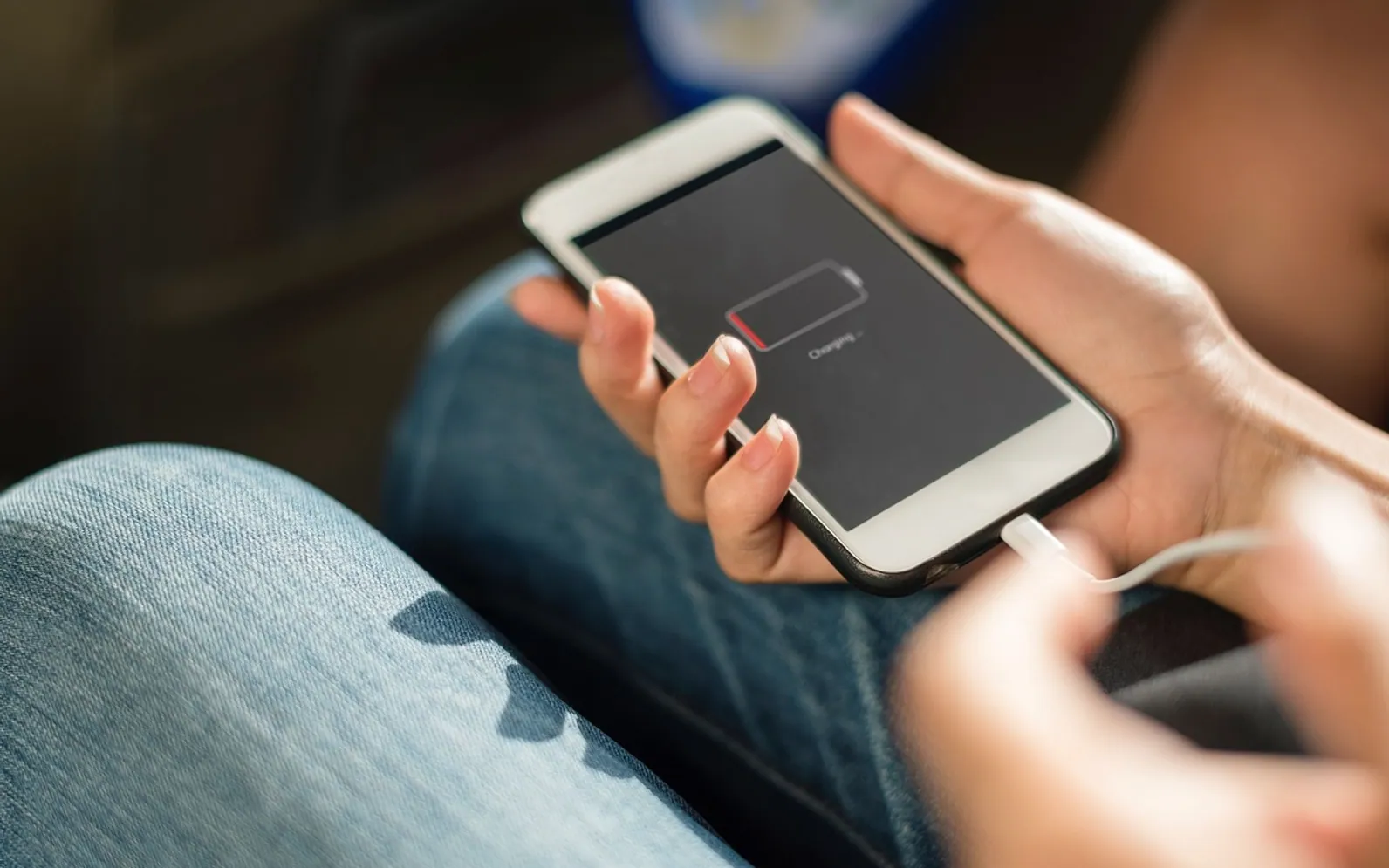
Sharing a connection keeps the phone's radio working hard, so it gets warm and the battery drains quickly. Keep the phone out of direct sun, plug it in for longer sessions and avoid stuffing it into a bag while it works. If the battery already struggles to last the day, read our guide on checking battery health on Android before you lean on the hotspot every week.
Used sensibly, a phone hotspot is the most practical backup connection a small business can have: no extra contract, no extra box, and it fits in your pocket.
What is new in each topic



DrawerSmartphonesTips & Advice