Cloud-Based Computer Systems
A plain-language look at cloud-based computer systems: how files and software move online, the main benefits, the trade-offs and how to start safely.
Updated
 2 min read
 For decades, a computer kept almost everything it needed on its own internal drive. Programs were installed from discs, documents lived in local folders, and running out of space meant buying a bigger disk or deleting old files. Cloud-based systems turn that model around: data and software are stored on remote servers and reached over the internet, so the device on your desk becomes more of a window than a warehouse.
What "the cloud" means in everyday terms
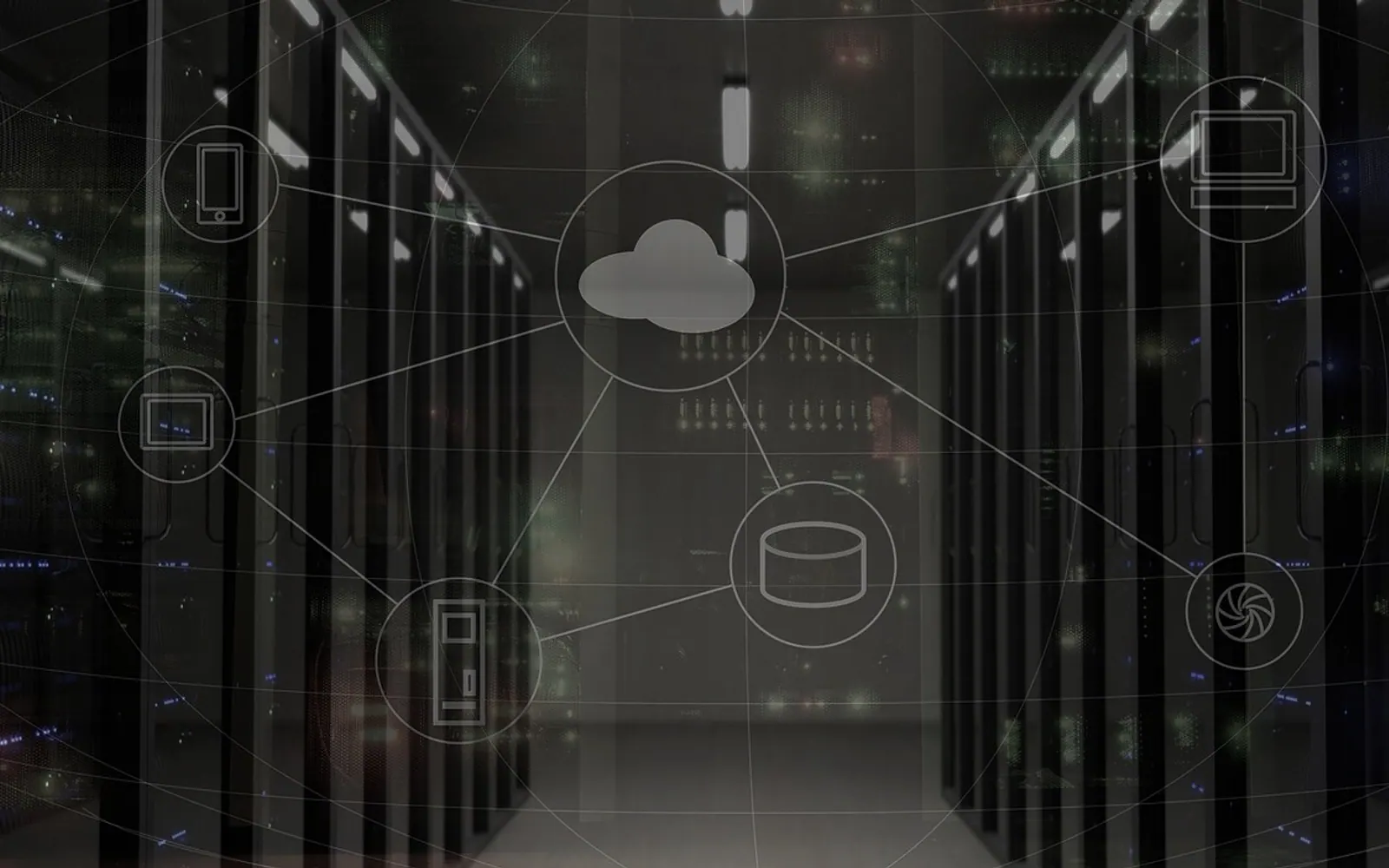
The cloud is simply a large pool of computers in data centres, run by a provider and rented out as a service. Instead of saving a spreadsheet to your hard drive, you save it to an online account. Instead of installing an office suite on each machine, you sign in through a browser or a lightweight app. Most people already use the cloud without thinking about it, through webmail, photo backup on a phone or a shared document edited by several colleagues.
Common forms you will meet
- Cloud storage: online drives for documents, photos and backups.
- Software as a service: email, accounting, design and office tools used through the browser.
- Virtual desktops: a full computer environment hosted remotely and opened from almost any device.
- Hosted servers: websites, databases and business applications running in a provider's data centre.
Why households and small offices like it
The most obvious gain is space. Large photo libraries and project archives no longer weigh down a laptop, and storage can grow as needed. Access is another: files follow you from the office PC to a home tablet or a phone on the train. Collaboration becomes easier because several people can work on the same document without emailing versions back and forth. Updates are handled by the provider, so the software stays current, and a lost or broken device is far less of a disaster when the data sits safely elsewhere.
The trade-offs to weigh
| Consideration | What to think about |
|---|---|
| Internet dependence | Without a connection, some tools stop working; check which offer offline modes. |
| Ongoing costs | Subscriptions replace one-off purchases, so review plans now and then. |
| Privacy and security | You are trusting a provider with your data; read its policies and settings. |
| Lock-in | Moving large amounts of data between services can take effort, so favour standard formats. |
Getting started sensibly
Begin with one task, such as backing up photos or sharing family documents, rather than moving everything at once. Turn on two-factor authentication for every cloud account and use a password manager so each service has its own strong password. Keep an occasional offline copy of truly irreplaceable files on an external drive, because a second backup in a different place is cheap insurance. Finally, tidy up as you go: clear folder names and sensible sharing permissions save a lot of confusion later, especially when several people in a home or office rely on the same storage.
What is new in each topic



DrawerComputerTechnology