How to Clean Dust Out of a Desktop PC Without Damage
Step-by-step dust cleaning for a desktop PC: tools, filters, fans, heatsinks and the power supply, plus the mistakes that harm parts and how often to clean.
 4 min read
 Switch the PC off, unplug it, move it somewhere you do not mind making a mess, open the side panel and clear the dust with short bursts of compressed air and a soft brush, holding each fan still while you blow. Clean the dust filters, work from the top of the case down, and put everything back before plugging in. That is the method in brief; the details below are what keep the parts safe.
Why bother
A desktop pulls room air through its case to cool the processor, graphics card and power supply. Dust comes in with that air and settles on fan blades, filters and the fine metal fins of heatsinks. As it builds up, air moves less freely, temperatures climb and the fans spin faster to compensate. If you have ever wondered why your computer fan is so loud when nothing demanding is running, a dusty heatsink is the most likely answer. Left long enough, heat leads to slowdowns as the processor protects itself, and eventually to random shutdowns.
What you need
- A screwdriver that fits the case screws (many cases use thumb screws).
- Compressed air in a can, or an electric air duster.
- A soft, clean brush, such as a new paintbrush or an anti-static brush.
- A microfiber cloth and a few cotton swabs.
- Isopropyl alcohol for sticky grime on plastic and metal surfaces.
- A torch, and a phone camera to photograph cable positions before you touch anything.
Step by step
- Shut down and unplug. Turn off the switch on the back of the power supply, pull the power cable, then press the case's power button once to drain leftover charge.
- Move it. A balcony, garage or a table near an open window spares the room from a cloud of dust. Lay the case on its side with the open panel facing up.
- Ground yourself. Touch a bare metal part of the case before handling anything inside, and repeat now and then. Avoid working on carpet in socks.
- Clean the filters first. Most cases have removable mesh filters at the front, top and underneath the power supply. Tap them out, brush them, or rinse washable ones under the tap and let them dry completely before refitting.
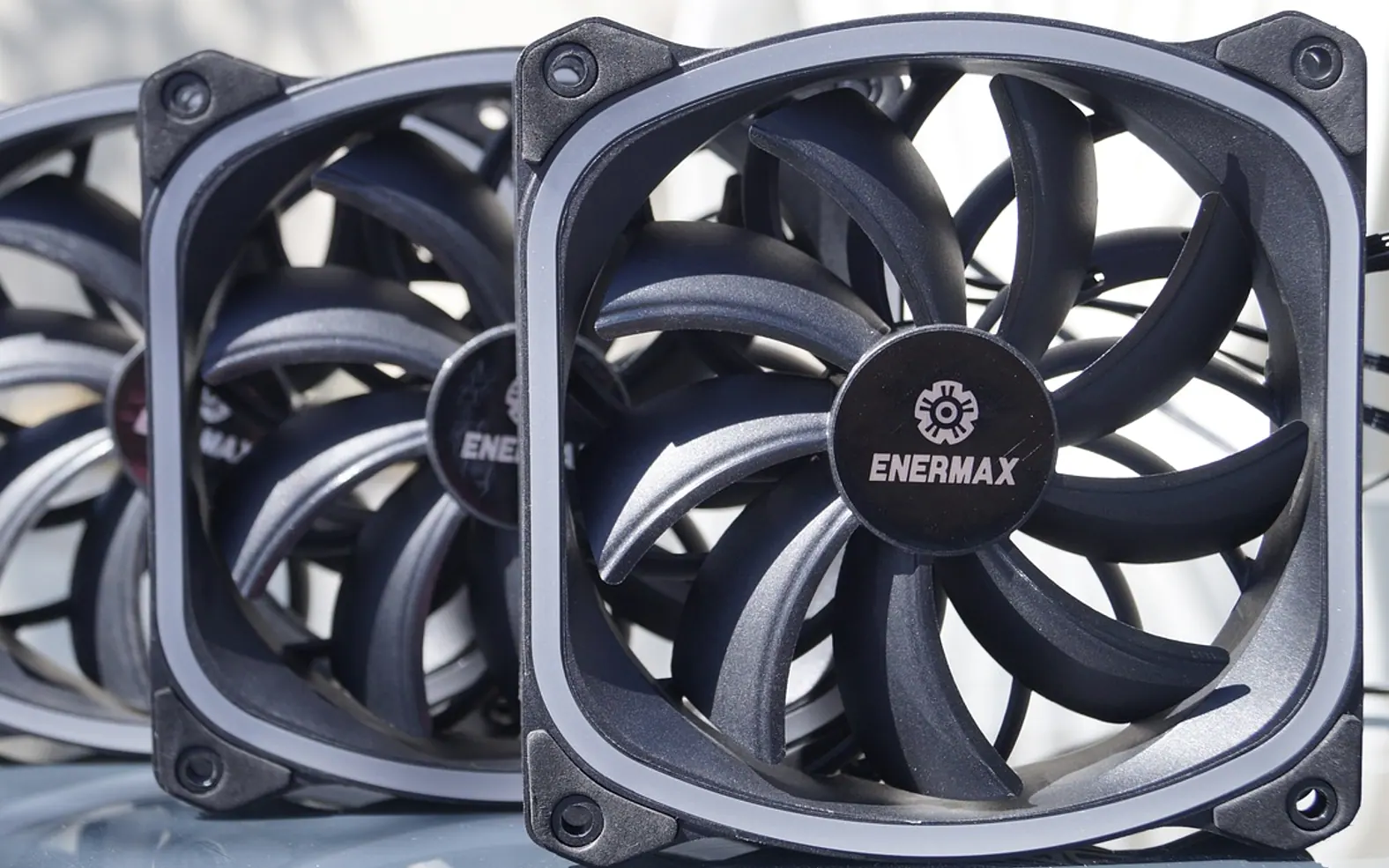
- Do the fans. Hold each fan's blades still with a finger or a plastic tool, then blow across them in short bursts. Letting compressed air spin a fan far beyond its normal speed can damage its bearings.
- Clear the heatsinks. The processor cooler and the graphics card have dense metal fins where dust packs into a felt-like mat. Blow through the fins in the direction that pushes dirt out of the case, and use the brush on stubborn patches.
- Blow out the power supply from the outside. Direct air through its grille while holding its fan still. Never open a power supply: its capacitors can hold a dangerous charge long after unplugging.
- Finish the floor and corners. Brush loose dust toward the openings, wipe the case floor with the cloth, and swab grime off plastic surfaces with a little alcohol.
- Close up and test. Refit the panel, reconnect power, start the PC and check that every fan spins.
Mistakes that cause damage
| Mistake | Why it matters | Do this instead |
|---|---|---|
| Using a household vacuum inside the case | Plastic nozzles build static and can knock off small parts | Use air and a brush; vacuum only the floor around the PC |
| Tilting or shaking the air can | Liquid propellant can spray out and leave frost on parts | Keep the can upright and use short bursts |
| Letting fans freewheel | Overspeed wears bearings and may feed voltage back to the fan header | Hold blades still while blowing |
| Wiping boards with a damp cloth | Water and electronics do not mix | Dry brush first; alcohol only on surfaces, sparingly |
| Pulling cables to get better access | Loose connectors cause no-boot puzzles later | Photograph first, reconnect exactly as before |
Cases with lighting deserve one more caution: the small headers for lighting strips and fans are easy to plug into the wrong pins. The guide to RGB and ARGB connectors explains why a mix-up there can do real harm.
How often to clean
There is no fixed calendar, because dust depends on the room. A PC on a desk in a tidy office may go many months between cleans; one on the floor of a carpeted room, near a workshop, or in a home with pets and shedding fur needs attention far sooner. A simple habit works well: glance at the front filter every few weeks. When it looks grey, the inside needs a clean too. Raising a floor-standing PC onto a low stand or the desk also keeps it out of the dustiest air.
What if it is still hot or noisy afterwards?
Check the temperatures
The firmware's hardware monitor page shows the processor temperature without extra software; the guide to BIOS and UEFI explains how to reach it. Compare readings before and after cleaning.
Look at the thermal paste
On machines several years old, the compound between the processor and its cooler can dry out, so a clean case still runs hot. What thermal paste does and when to replace it walks through that job.
Listen for a failing fan
A rattle, buzz or clicking that remains after cleaning usually points to a worn fan bearing. Case fans are inexpensive and straightforward to replace.
Laptops are a different job
Short puffs of air into a laptop's vents, with the machine off, can clear loose dust. Opening the base to reach the fan is fiddlier, can affect a warranty, and on some models means disconnecting fragile ribbon cables. For machines that matter to a business, it is sensible to leave that to a computer support company, which can also clean a batch of office desktops in one visit.
What is new in each topic




DrawerComputerTips & Advice